Overview
This article explains how to set up Gemini CLI.
How to Set Up Gemini CLI
1. Install Gemini CLI
Use Homebrew to install Gemini CLI.
| |
2. Configure Gemini CLI
Run the gemini command.
| |
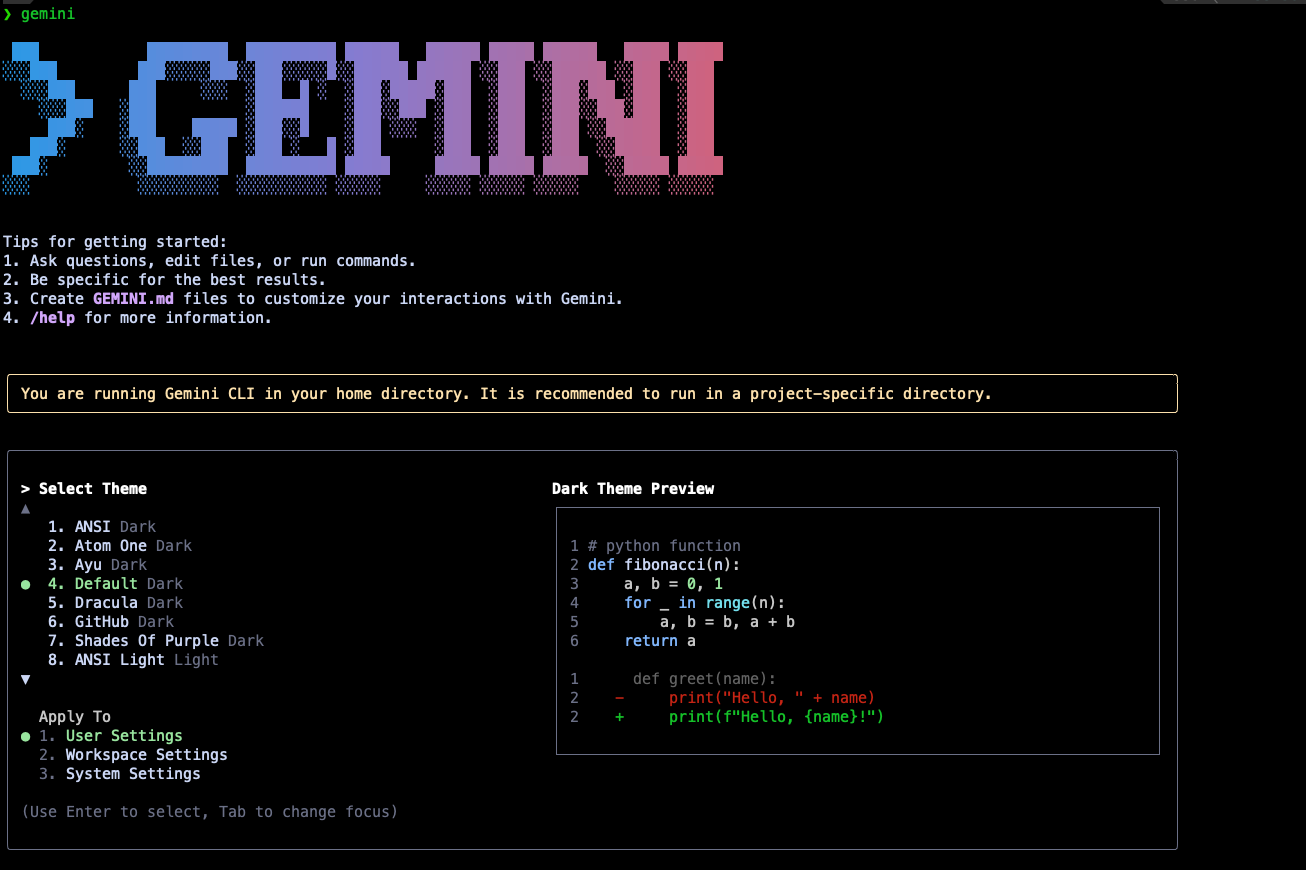
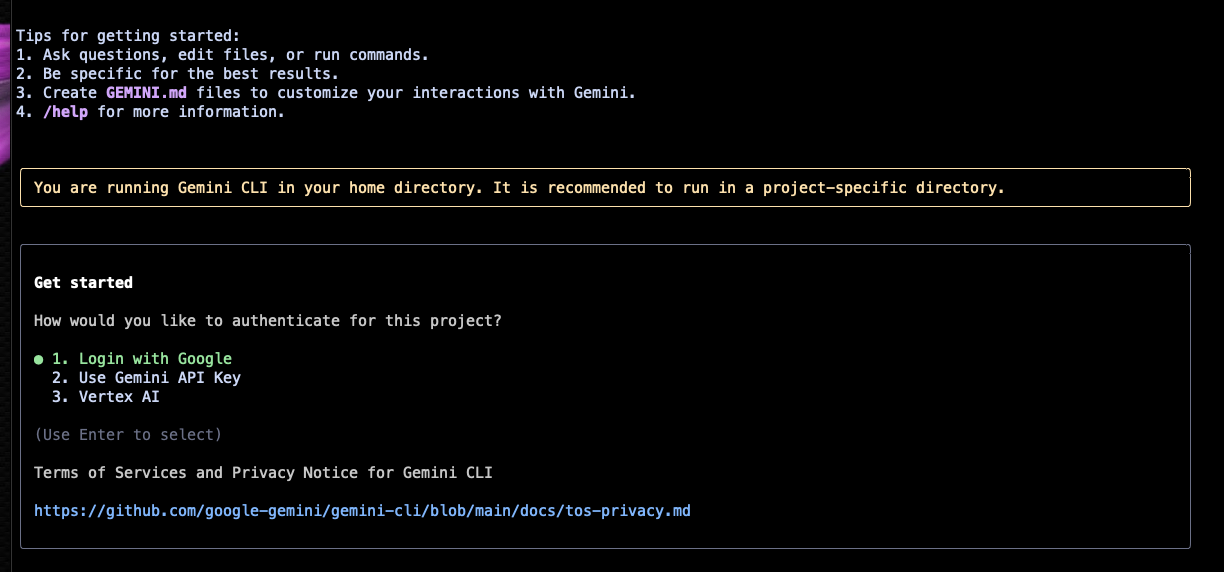
You can choose to log in or enter an API key to use it.
This time, we will select “Login with Google” to log in.
The screen transitions to the login page.

Once logged in, Gemini CLI becomes available.
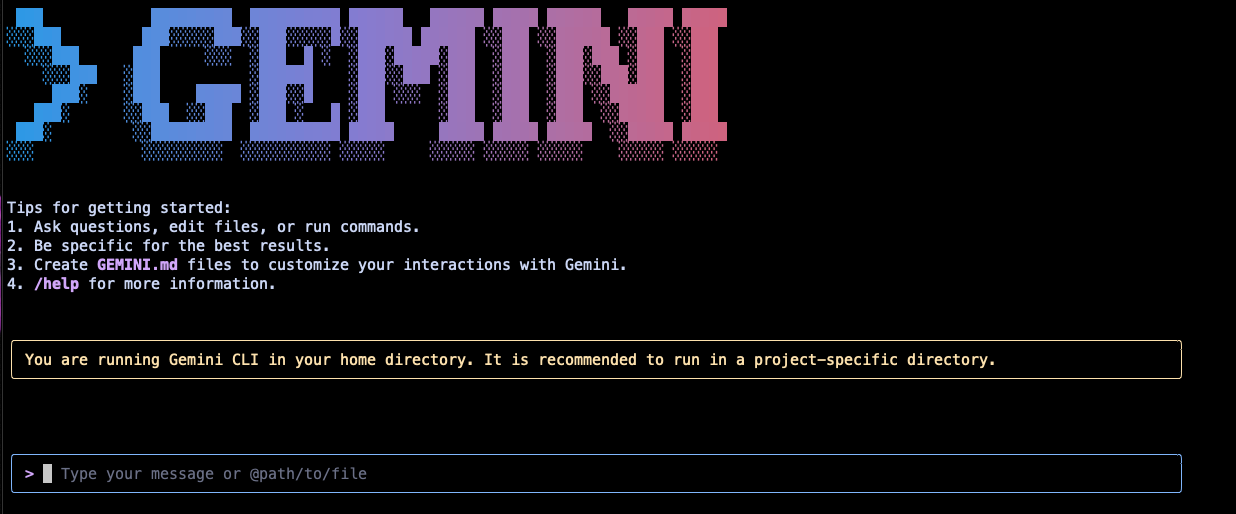
3. How to Use Gemini CLI
You can ask questions or request tasks using Gemini CLI.
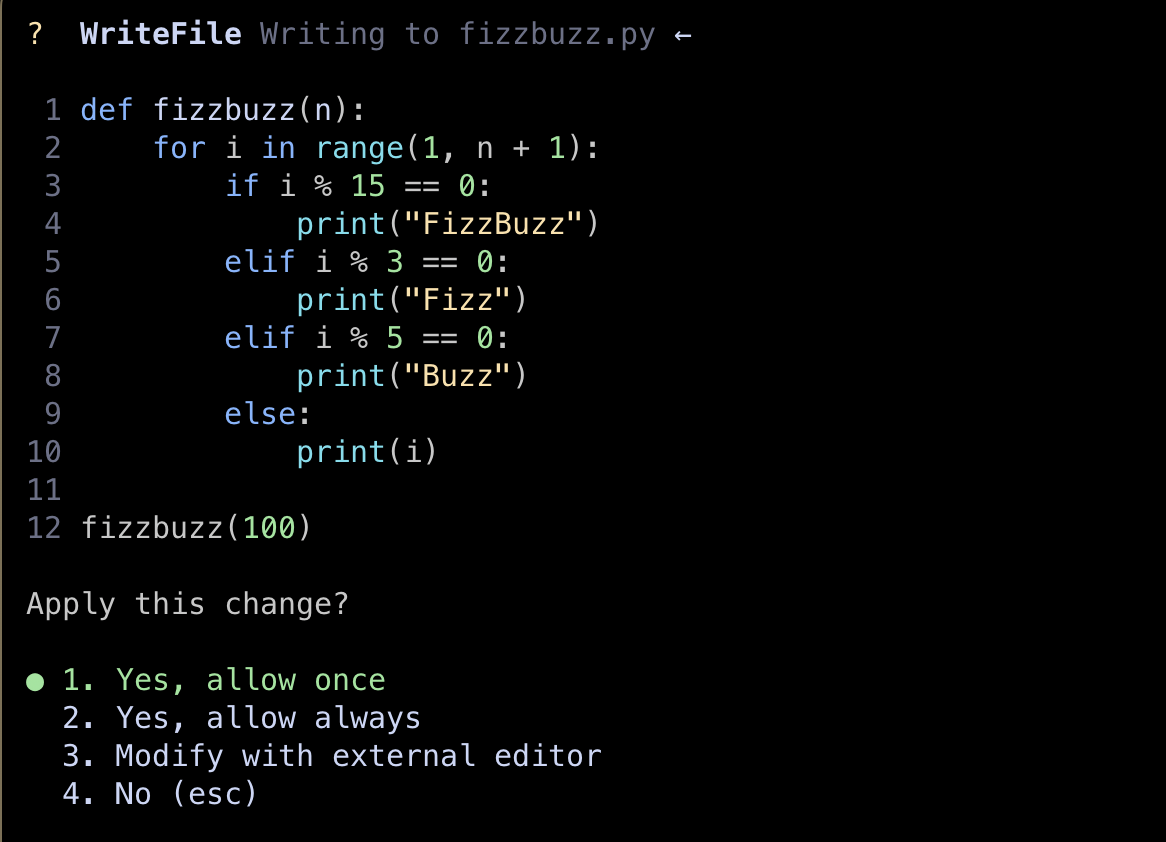
This time, we will ask it to solve the FizzBuzz problem.
| |
Type “Please write the code for FizzBuzz” into the Gemini CLI prompt.
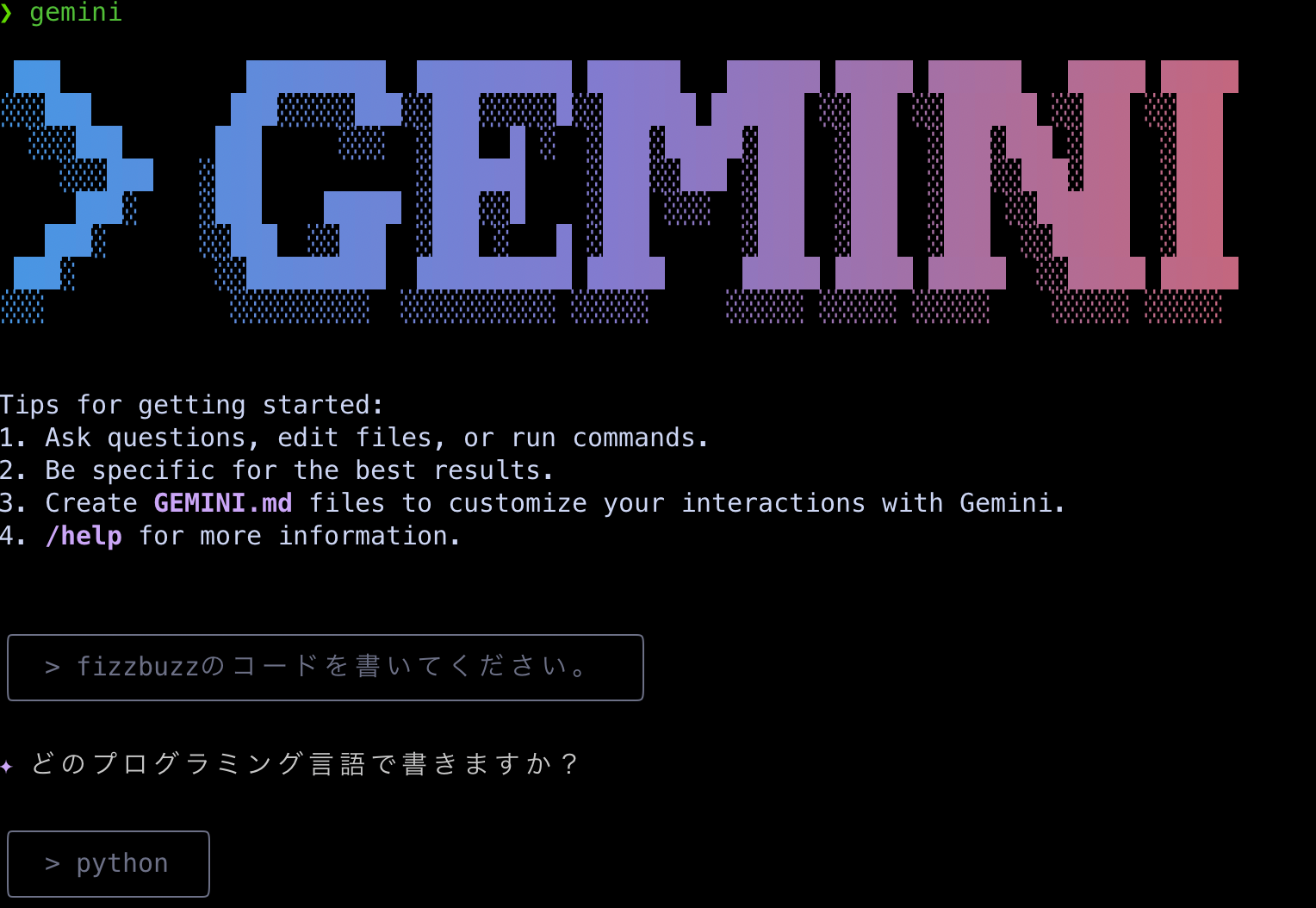
After inputting, Gemini will generate the code for you.
Summary
By setting up Gemini CLI, you can use Gemini AI directly from the terminal. This enables efficient development and task management using AI. Gemini CLI is very user-friendly and makes terminal work smoother. Give it a try!
Related Articles
- Introduction to ChatGPT 4o (comparison with ChatGPT)
- How to Use the OpenAI Response API (API integration in practice)